
New from ZenvioSoft
SAP Assistant
Describe the job you want done in SAP GUI in one sentence. The assistant reads the open screen, prepares the steps, and carries them out once you approve.
Demo video · 2:03 · on-screen text in TurkishCompanies, people and orders shown are fictitious
What it does
The assistant does what the user could do on screen, with the user's own SAP authorizations. Nothing is installed on the SAP server.
Explains the screen
It reads the fields, the status bar and ALV rows on the open SAP screen, explains what it sees, and outlines the field it's talking about. In ME23N, for example, it can point out the next delivery date or the highest-value item.
Works in SAP for you
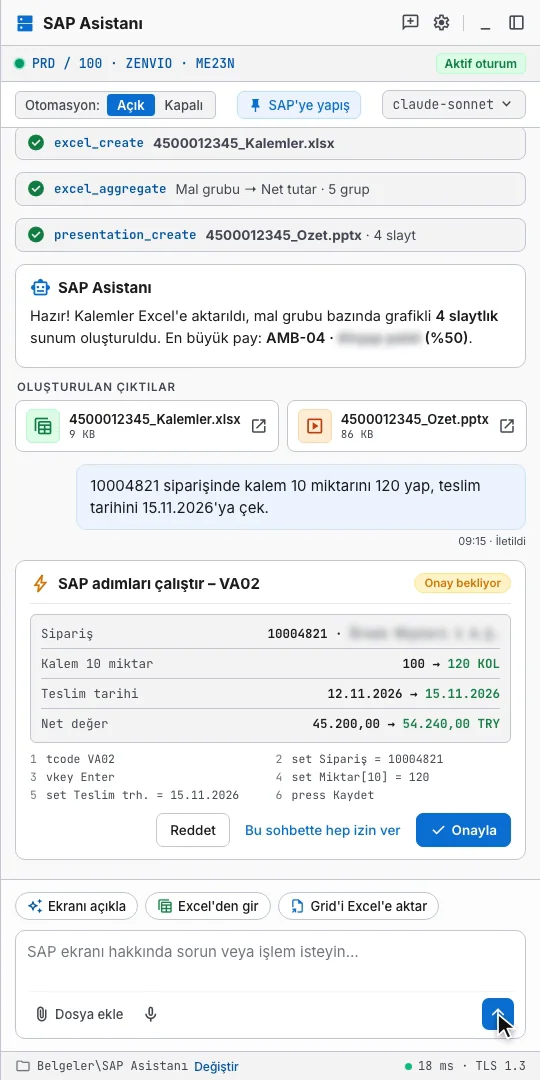
It opens the transaction, fills in fields and saves. Before running, it shows the steps and every old and new value on an approval card: reject, approve, or allow for the rest of the chat.
Bulk entry from Excel
It turns a transaction into a template and applies it to rows in a spreadsheet, up to 1,000 rows per run. The outcome and SAP message for each row go to a separate results file, so failed rows are easy to spot.
Exports to Excel and PowerPoint
It exports ALV lists of up to 100,000 rows to Excel, filters, groups and totals them on your machine, and builds a slide deck with tables and charts.
You stay in control
- Approval for every changeNo step that changes data in SAP runs until you approve it, and a Stop button halts it mid-run.
- Read-only modeWith automation switched off, the assistant only reads the screen and gives guidance.
- Data stays on your machineExports, bulk entry and calculations run locally; large tables are never sent to the model. File access is limited to a single folder you choose.
- Your choice of modelThe AI service your company already uses, or a model running on your own local server. The access key is stored encrypted.
Requirements
- Operating system
- Windows
- SAP client
- SAP GUI for Windows 7.70 or later
- Setup
- We check the required SAP settings with you during installation.
- AI model
- A cloud AI service or a model on your own local server
See it on your own system.
Tell us which transactions eat up your team's time, and we'll try the assistant on those scenarios together.
- Phone
- +90 (532) 598 24 99
- Location
- Istanbul, Türkiye